There are multiple ways to track time in Everhour. Each has its own advantages depending on where you spend most of your working day.
Time page on the Everhour website
Log in to your Everhour account and open the Time page. Here you can add or edit all your time entries from a single place — even across multiple integrations.
The search input at the top lets you quickly find any task by name or project, start the timer, or log hours manually.
List tab
Shows your time entries grouped by day of the week in descending order, with the current day always at the top. Hover any entry to quickly start the timer again or edit the time inline.
Timesheet tab
Shows the same data in a calendar grid — tasks grouped together with daily totals. Click any cell to add or edit time. Use the "Add Time" button to add a new task, or pull in tasks from previous weeks.
Timecards tab
Record clock-in and clock-out times without logging time to specific tasks — ideal for salaried employees or teams that don't need task-level tracking. Administrators can enable or disable Timecards on the Applications page.
Via the browser extension
You don't need to open the Everhour website at all. Click the timer icon in your browser toolbar to open the extension pop-up — from there you can start the timer, add time to any task, edit estimates, and more.
Inside your project management tool
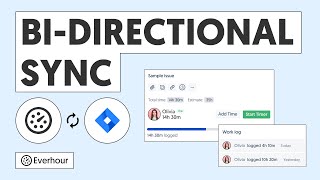
Everhour embeds time tracking controls directly into the web interface of Asana, Trello, ClickUp, Basecamp, Jira, Notion, Todoist, and more. This means you stay in the tool you already use all day — no tab switching, no duplicate data entry.
Just click Start on any task and stay focused. This also improves accuracy and reduces the training your team needs.
Requires the Everhour browser extension.
Mobile app
Download the Everhour app for iOS or Android to track time from anywhere. Start and stop the timer or log time manually for any task you've worked on. You can also use the Everhour website on your mobile browser.