The Team section brings together everything a manager needs to keep track of people — who's working on what, who's off, and whether overall attendance aligns with your expectations. It's the people management hub inside Everhour, consolidating member administration, workload visibility, time-off management, and attendance tracking into four dedicated tabs.
This video covers the four main tabs in the Team section: Members, Workload, Time-offs, and Attendance — and explains what each one is for and how to use it effectively as a manager or admin.
What's covered in this video
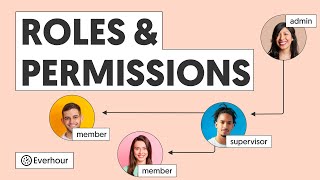
The Members tab is where you invite new people to Everhour, set their roles (Admin, Manager, or Member), and configure per-member settings like expected working hours per day and internal pay rate. The pay rate field is separate from the billing rate — it represents what you pay the person and is used to calculate the cost side of profitability reports, while the billing rate is what you charge clients. Both can be set independently. You can also assign team members to specific projects from the Members tab, which is useful for access control when you want a member to only see and log time on the projects relevant to them.
The Workload tab presents a calendar grid showing how many hours each person has logged per day compared to their expected daily capacity. Days where a person worked fewer hours than expected appear in one color, days where they worked more appear in another, making it immediately obvious who is over-extended and who has spare capacity. Managers use this view during resource planning conversations and to decide how to distribute incoming work. The Workload grid covers any date range you choose, so you can review last week's utilization or plan coverage for next month.
The Time-offs tab supports a structured request-and-approval workflow for vacation, sick leave, and other absences. Team members submit a request specifying the type of time off and the dates. The responsible manager receives a notification and can approve or deny the request. Approved time off is reflected in the Workload and Attendance views so that gaps are correctly attributed to approved leave rather than unexplained absences. The Attendance tab complements this by showing a day-by-day record of whether each person logged any time, flagging days where someone was expected to work but no entries were recorded — making it straightforward to follow up on unexplained absences.
Key features shown
The Team section is designed to give managers complete visibility into their team's time without requiring a separate HR tool for basic people management. The Members tab handles invitations, role assignments, and per-person pay rates that feed into payroll and profitability reports. The Workload grid uses color-coded capacity indicators to surface over-allocation and underutilization at a glance, updated daily as time entries are submitted. The Time-off workflow provides a simple approval process that keeps absence records organized and visible to the whole management team. Individual member profiles let you drill into the full time history for any person, which is useful during performance reviews or when investigating time discrepancies.