This tutorial walks you through Asana from scratch — how to create projects, structure tasks, collaborate with your team, and add Everhour time tracking without leaving Asana.
Creating projects & tasks
Asana organizes work into Portfolios → Projects → Sections → Tasks → Subtasks. Start by creating a project, then add tasks inside it. Each task can have a description, attachments, due date, and custom fields.
Assigning work
Assign tasks to team members directly from the task detail pane. Use due dates, priority levels, and dependencies to build a clear work structure your whole team can follow.
Time tracking in Asana with Everhour
Connect Everhour to Asana from the Integrations page in your Everhour account settings. Then install the Everhour browser extension.
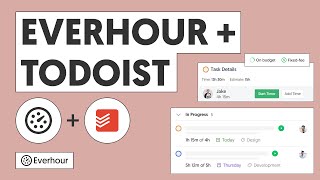
Once set up, a timer button and estimate field appear on every Asana task — no Power-Up or third-party add-on needed. Click Start to begin tracking time without leaving Asana. All hours flow into Everhour reports in real time.
Everhour also shows total time and budget progress directly on the Asana project header, so managers can monitor cost without switching tools.
Reports
In Everhour's report builder, Asana-specific columns let you filter and group by project, section, assignee, task status, and custom fields — perfect for client billing and project profitability analysis.